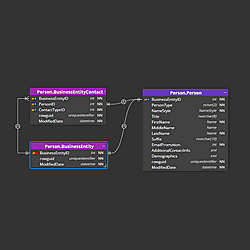
Navigator - Context Lens
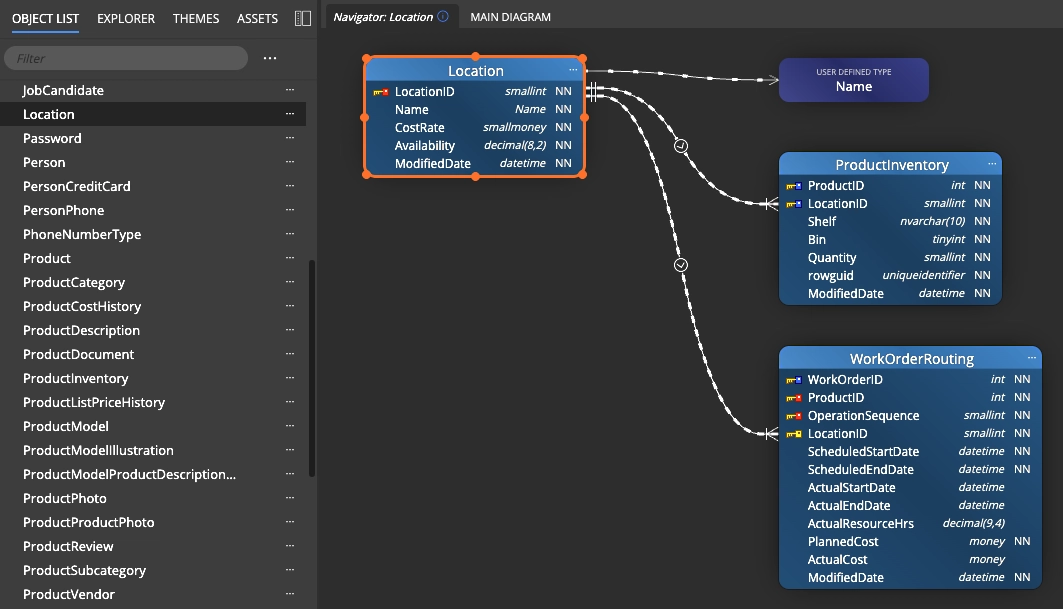
Context Lens is a Navigator view in Luna Modeler that turns "trace the lines yourself" into "click and look." Select any table, view or other object in the object list, and Luna Modeler opens a clean, automatically generated diagram containing just that object and everything connected to it: relationships, dependency lines, and any other line leading to a related asset.
Why use Context Lens
On a diagram with a handful of tables, following a relationship line by eye is trivial. On a production model with hundreds of tables, it isn't. Context Lens is built for exactly that case: it resolves every connection for the selected object automatically, so you don't zoom, scroll and lose your place trying to answer "what does this table actually connect to?"
How to use Context Lens
- Open your data model in Luna Modeler.
- Activate the Navigator / Context Lens diagram.
- Select any table, view or other object from the object list.
- Read the focused diagram: every relationship, dependency and line leading back to your selection, with nothing else in the way.
- Select a different object at any time — the lens refreshes immediately to that object's own neighborhood.
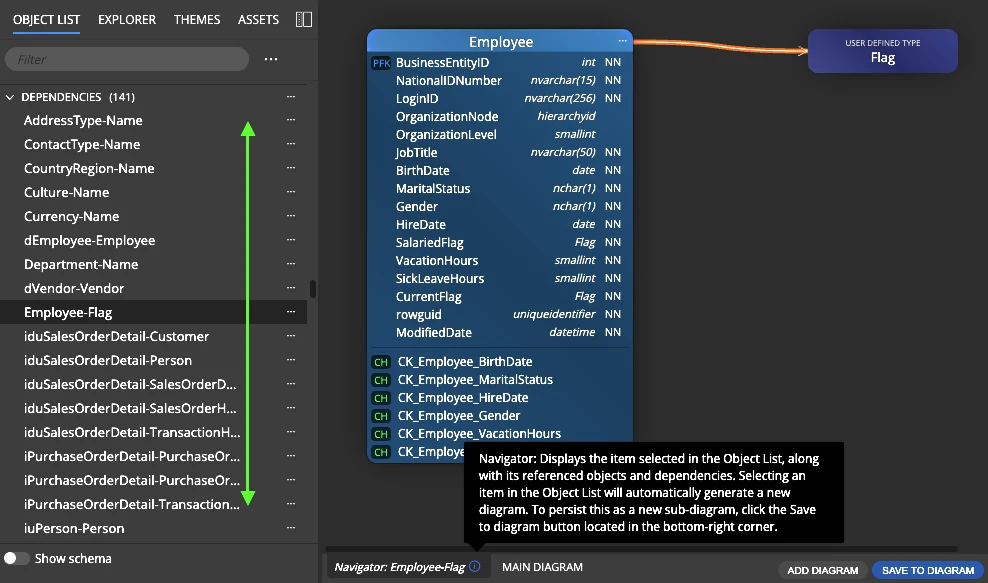
Context Lens is generated live from the model you already have — nothing to build by hand, and nothing that goes stale. Return to the full diagram at any point; your saved model doesn't change along the way.
Context Lens vs. referenced objects
If you've used Luna Modeler's referenced objects, you already know you can right-click a table and add its referenced parents or children to build a permanent sub-diagram by hand. That's still the right tool when you want to curate and keep a specific analysis view.
Context Lens is the fast path to the same clarity: no right-clicking through menus, no sub-diagram to build first — just select the object and look. For the full walkthrough, including how Context Lens fits alongside impact analysis and schema drift checks, see the Navigator - Context Lens solution page.
#