What's new in
Moon Modeler version 13.5
This page was updated on September 14th
Cosmos DB and DocumentDB Connections, Easier Restructuring
- Azure Cosmos DB.
A dedicated connection type for Azure Cosmos DB for MongoDB — enter the account URL, sign in and see your collections on a diagram. - DocumentDB.
DocumentDB clusters get their own connection type too, next to MongoDB and Cosmos DB. - Drag and move fields.
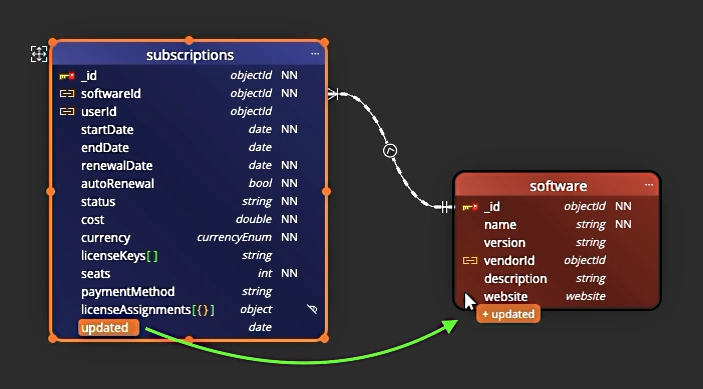
Move a field from one collection to another by dragging it on the diagram.
Azure Cosmos DB Support
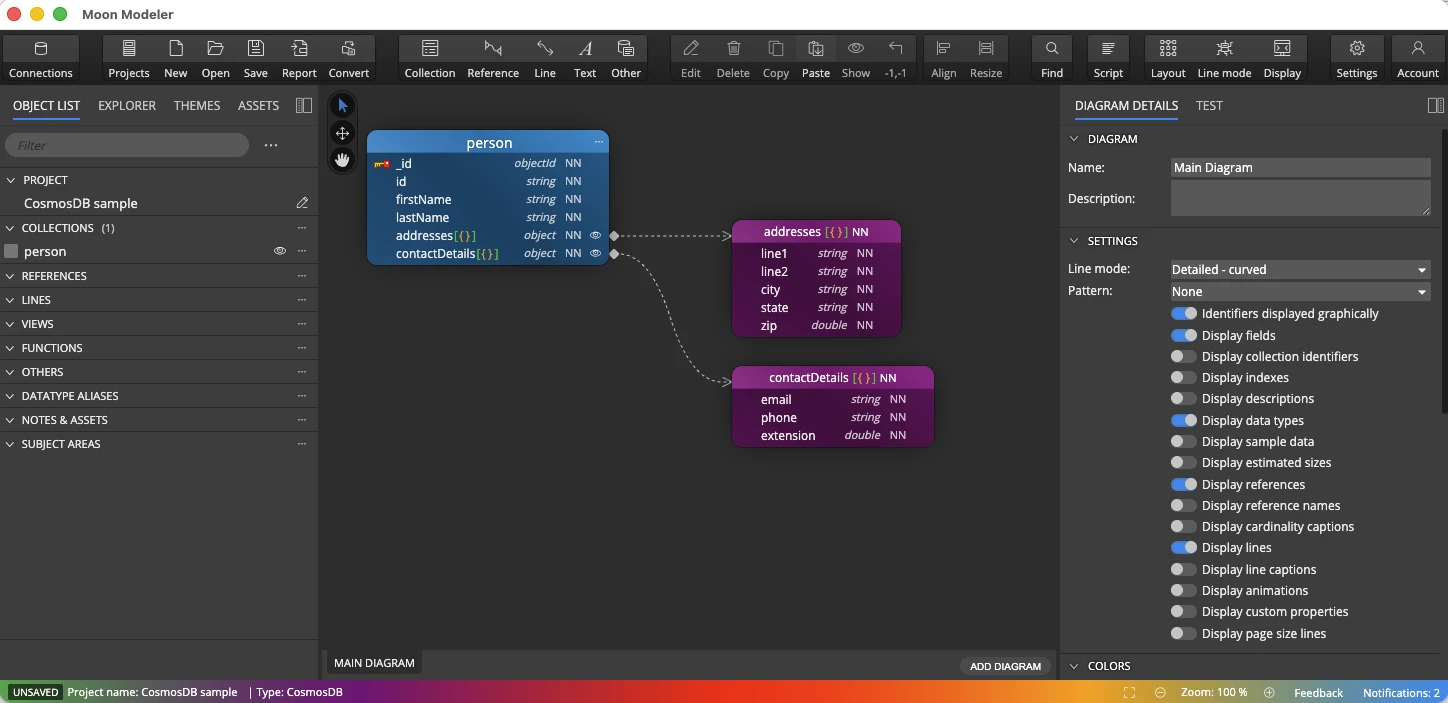
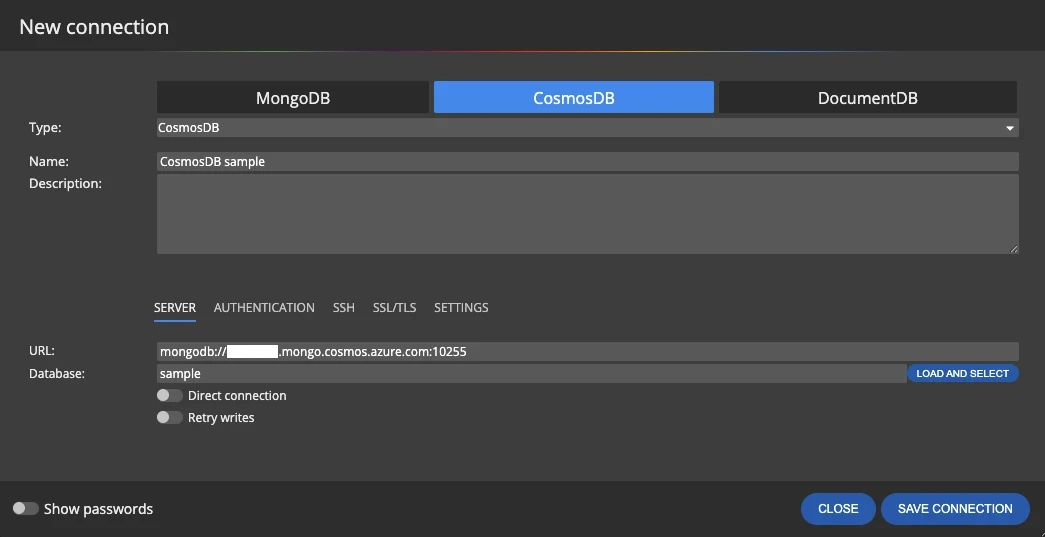
Cosmos DB now sits next to MongoDB and DocumentDB in the connection dialog. Enter the account URL in the form mongodb://<account>.mongo.cosmos.azure.com:10255, choose SCRAM-SHA-256 authentication, turn on TLS and load the list of databases to pick the one you want to visualize. Moon Modeler reads the collections, embedded documents and fields and draws the diagram for you.
Moon Modeler 13.5 needs MongoDB server version 4.2 or later. If your Cosmos DB account still runs an older server version, you can update it in the Azure portal under Settings → Features → Update MongoDB server version.
DocumentDB Support
DocumentDB has its own connection type as well, so settings specific to a DocumentDB cluster no longer have to be squeezed into a generic MongoDB connection. Connect to your cluster, load the structure and document it, or design new collections and generate validation scripts.
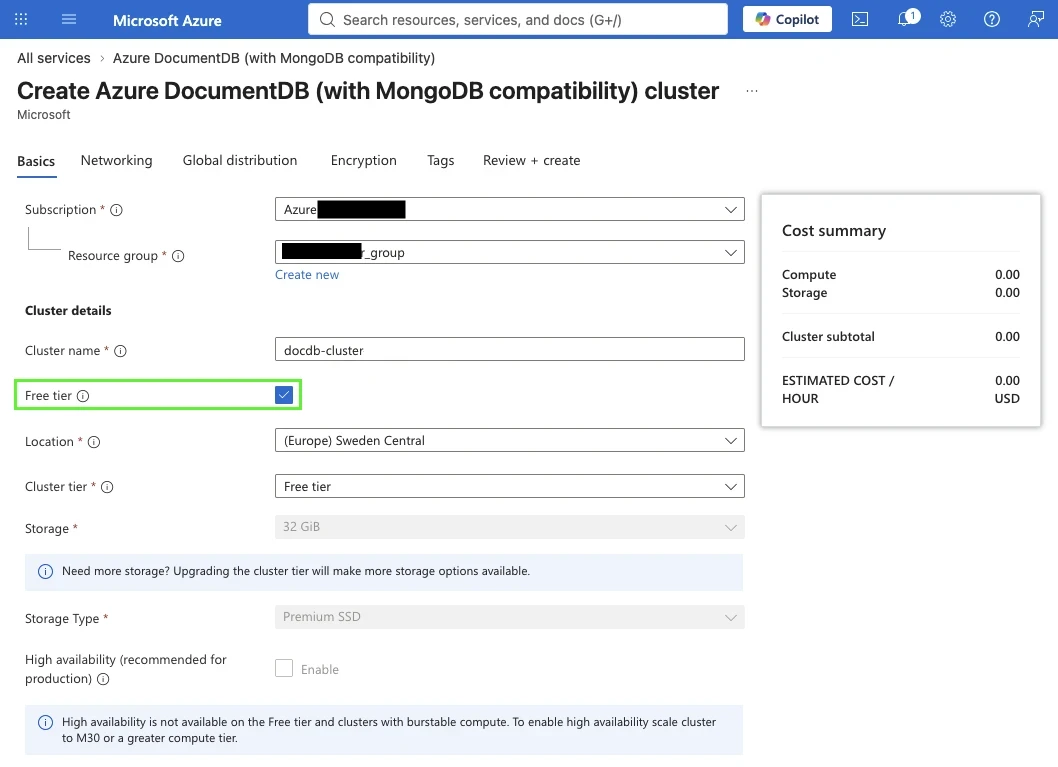
Want to try it without spending anything? Azure DocumentDB (with MongoDB compatibility) offers a free tier cluster with a storage large enough to experiment with schema design on a real cluster.
New Projects and Conversion for Cosmos DB and DocumentDB
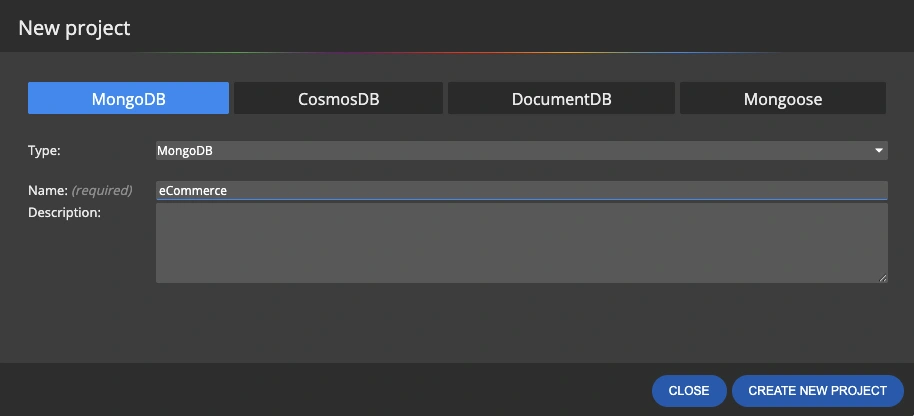
CosmosDB and DocumentDB are available in the New project dialog, next to MongoDB and Mongoose. Design collections for your target platform from the very first diagram.
Already have a MongoDB model? Click Convert on the main toolbar and choose Convert to CosmosDB or Convert to DocumentDB.
Drag and Move Fields Between Collections
Document models change as you learn how the data is read and written. A field that started in one collection often belongs somewhere else. Now you can drag it from one collection and drop it onto another — no need to delete it and define it again.
- Move a field to its owner.
Put a field into the collection that actually owns the data. - Split large documents.
Move fields out of an oversized collection into a new, smaller one. - Tidy up after reverse engineering.
Reorganize a loaded structure into the target design directly on the diagram.
Other improvements
Version 13.5
- Azure Cosmos DB: new connection type
- DocumentDB: new connection type
- New project: CosmosDB and DocumentDB added
- Convert: new options Convert to CosmosDB and Convert to DocumentDB
- Fields can be moved from one collection to another using drag and drop
Version 13
- Read What's new in Moon Modeler version 13 (with screenshots)