Moon ModelerSchema Design Tool
for Azure Cosmos DB
- Native Cosmos DB Connection A dedicated connection type, new in version 13.5
- Reverse Engineering Collections and embedded documents in one diagram
- Validation Scripts Generate schema validation from your model
- Excellent ROI Pay once, use forever
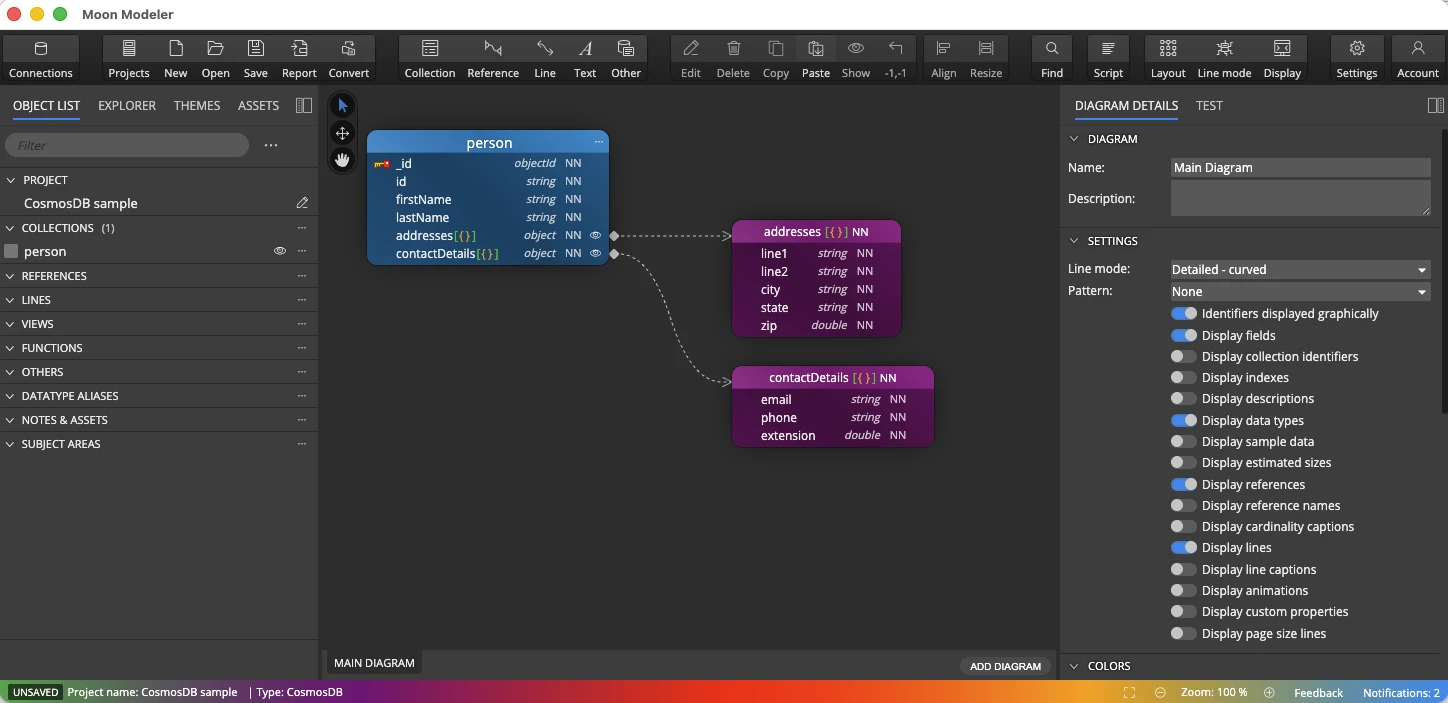
Create a CosmosDB connection in Moon Modeler, enter the account URL, sign in with SCRAM-SHA-256, turn on TLS and click Connect and load existing database structure. Moon Modeler reads the collections and draws the diagram for you.
Learn more about Moon Modeler
Accounts that use Azure Cosmos DB for MongoDB. Accounts created for the NoSQL, Cassandra, Gremlin or Table APIs don't speak the MongoDB protocol and can't be loaded into Moon Modeler.
and Visualize Your Collections
Step 1: Create a CosmosDB Connection
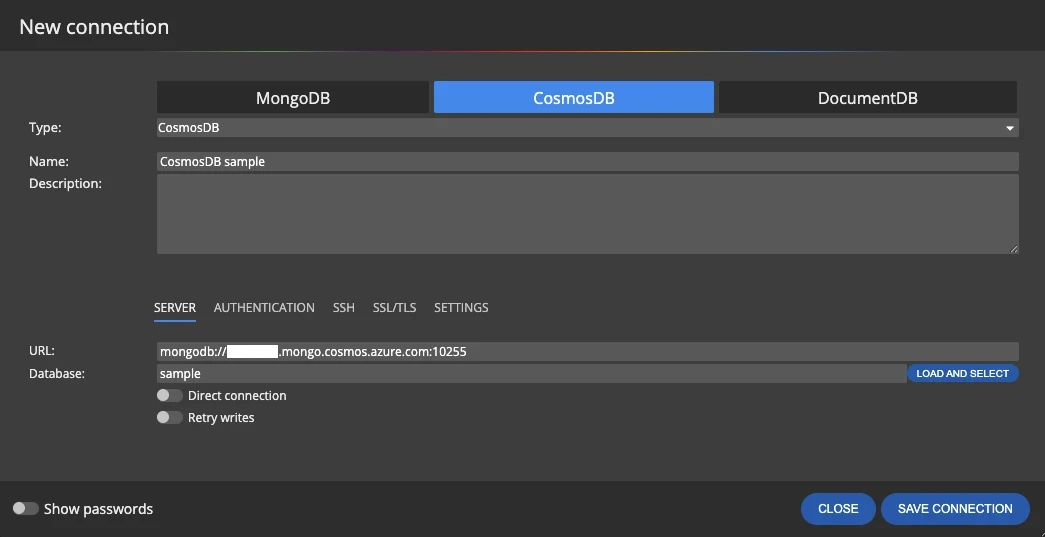
Click Connections on the main toolbar, then Create new connection and select the CosmosDB tab. Enter a name and fill in the URL in the form mongodb://<account>.mongo.cosmos.azure.com:10255. You can find the host and port on the Connection strings page of your account in the Azure portal.
Leave Retry writes off unless you enabled Retryable Writes on your Cosmos DB account.
Step 2: Set Up Authentication
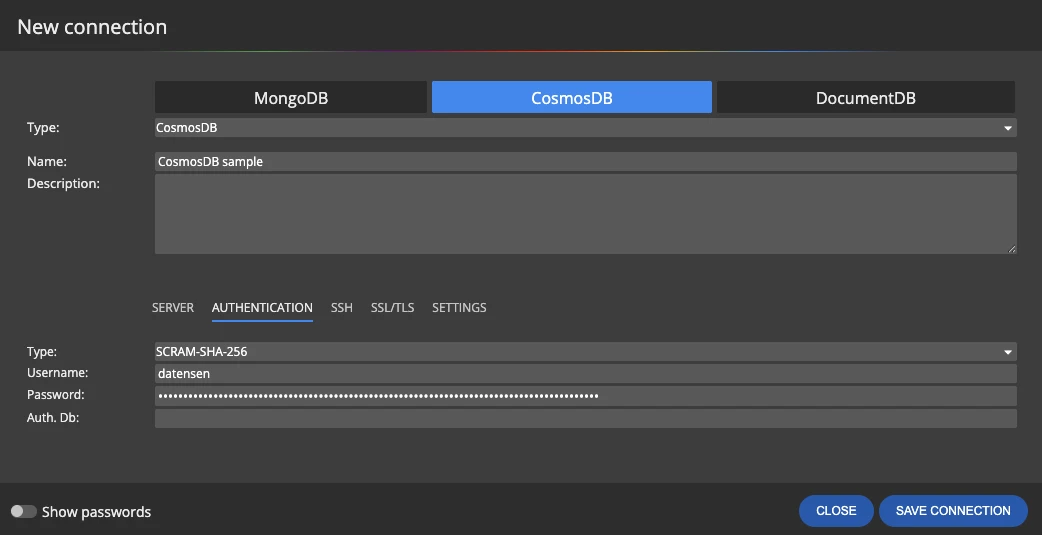
Go to the Authentication tab and select SCRAM-SHA-256. The username is the name of your Cosmos DB account and the password is the primary password from the Connection strings page in the Azure portal. Leave Auth. Db empty.
Step 3: Enable TLS
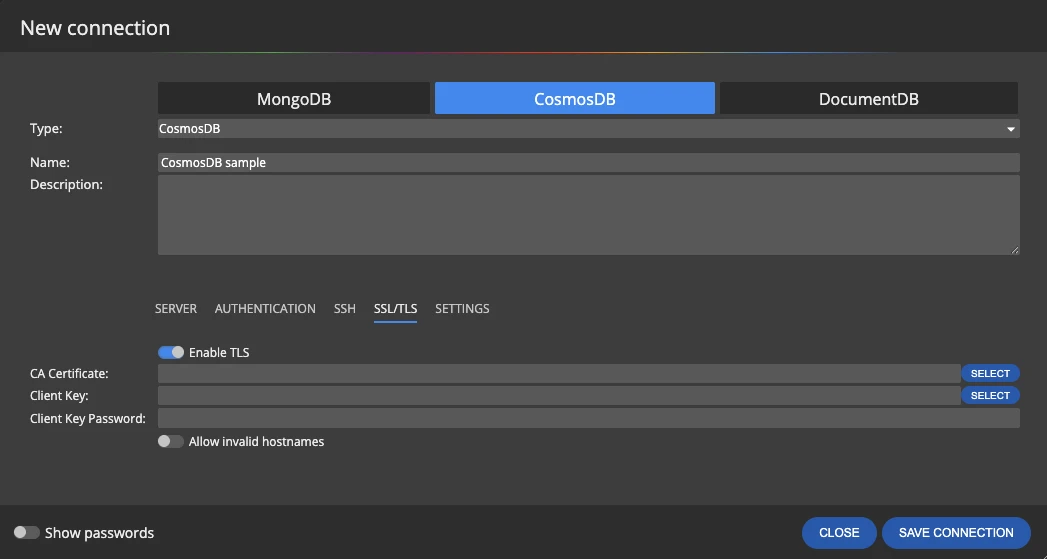
Azure Cosmos DB accepts encrypted connections only. On the SSL/TLS tab, turn on Enable TLS. No certificate files are needed.
Go back to the Server tab. If you didn't type the database name, click Load and select and choose the database you want to visualize. Then save the connection.
SSH/SSL/TLS connections are supported for MongoDB databases in the Professional Edition.
Step 4: Connect and Load the Database Structure
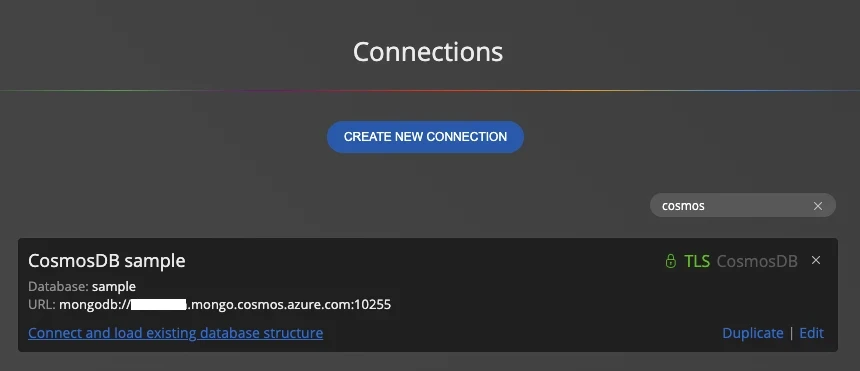
The new connection appears in the list with a TLS badge. Click Connect and load existing database structure and Moon Modeler reads the collections, fields and embedded documents from Cosmos DB.
Step 5: Explore and Document the Diagram
Moon Modeler creates a new project with the diagram. Embedded objects are displayed as separate objects linked to their parent collection, so the nesting is easy to follow.
Add descriptions, notes and sample data, arrange collections into sub-diagrams and share the result as an interactive HTML report or PDF.
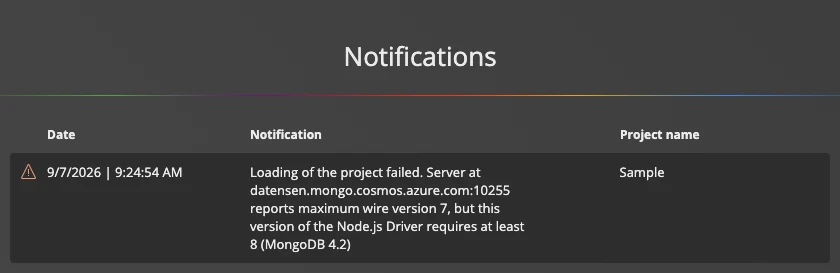
"Server Reports Maximum Wire Version 7"
Moon Modeler 13.5 uses a MongoDB driver that needs MongoDB server version 4.2 or later. If your Cosmos DB account still runs an older server version, loading fails with an error saying that the server reports maximum wire version 7 but the driver requires at least 8.
The message is shown in an error dialog and stays in the Notifications list. The fix is on the Azure side: update the server version of your account.
Check the Server Version in Azure
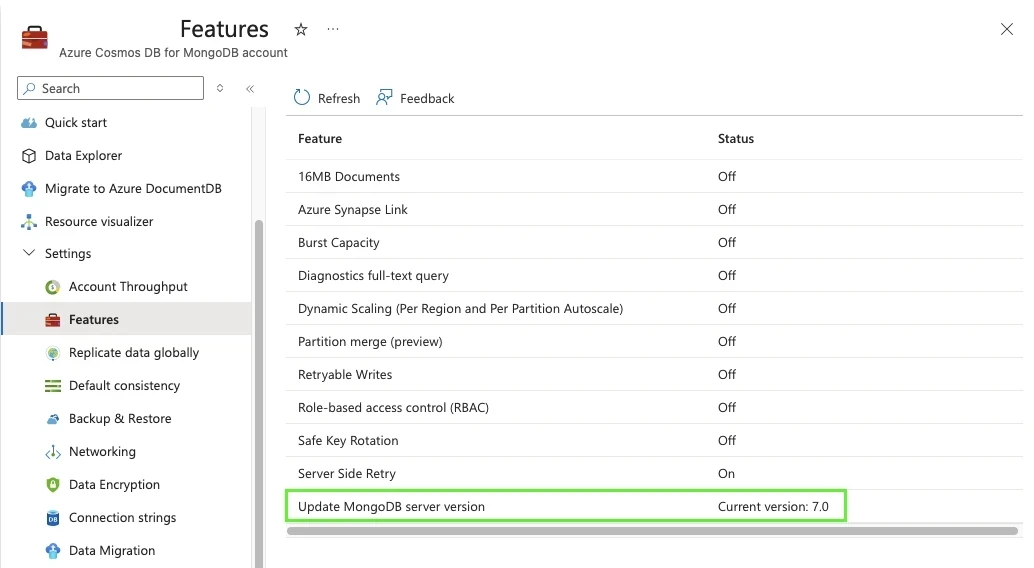
In the Azure portal, open your Cosmos DB account and go to Settings → Features. The Update MongoDB server version row shows the version your account runs right now.
Update the MongoDB Server Version
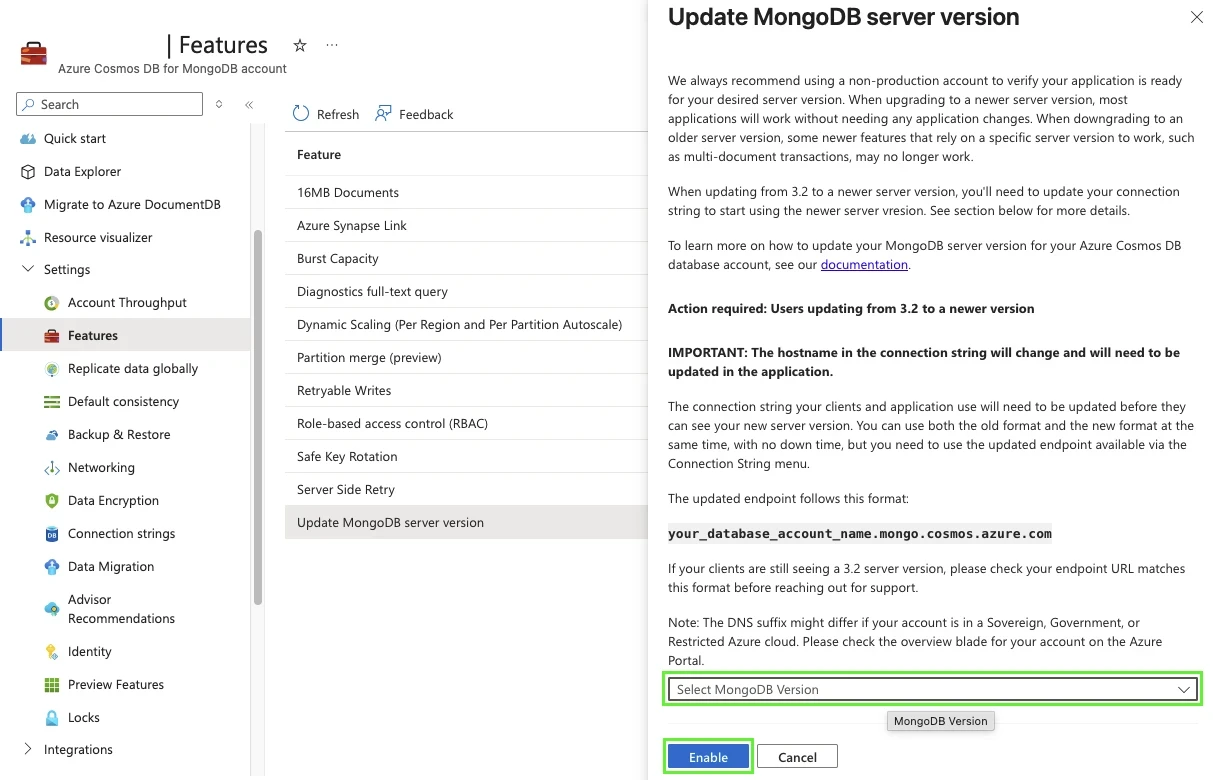
Click Update MongoDB server version, pick a version of 4.2 or later in Select MongoDB Version and click Enable. Try it on a non-production account first to make sure your applications work with the new version.
Updating from version 3.2 changes the host name to <account>.mongo.cosmos.azure.com. Update the URL in the Moon Modeler connection, then load the structure again.
Design New Collections and Generate Scripts
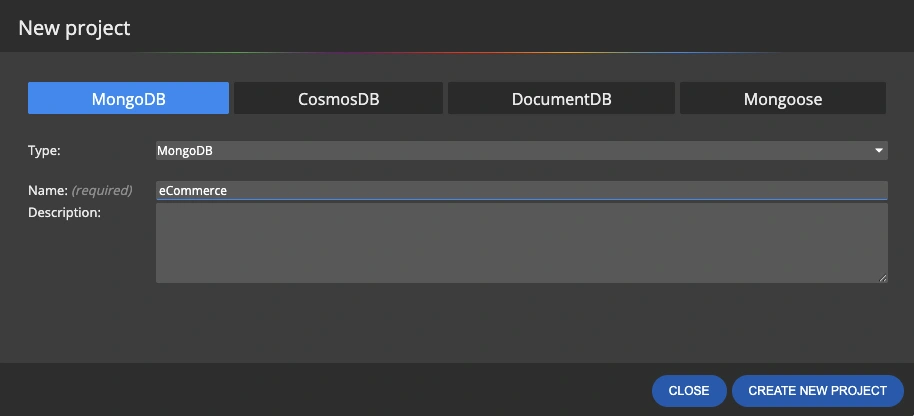
Moon Modeler works in both directions. Click New on the main toolbar and select CosmosDB in the New project dialog to start a model from scratch. Design collections visually, define fields, embedded documents and references, and generate validation and creation scripts for your Cosmos DB database.
Already have a MongoDB model? Click Convert on the main toolbar and choose Convert to CosmosDB.
Azure Cosmos DB for MongoDB. Accounts created for the NoSQL, Cassandra, Gremlin or Table APIs don't speak the MongoDB protocol and can't be loaded into Moon Modeler.
Your Cosmos DB account runs a MongoDB server version older than 4.2. Update it in the Azure portal under Settings → Features → Update MongoDB server version, then load the structure again.
On the Connection strings page of your account in the Azure portal. The username is the account name and the password is the primary password.
Yes. Design collections visually or load them from the database and generate validation and creation scripts from your model.
No. Moon Modeler is a desktop application for Windows, macOS and Linux. Database connections and data models stay on your computer.