Luna ModelerMore Than Tables and Keys
- Flowchart elements Start, Decision, Process and more on the canvas
- Data flow elements Terminator, Process, Data store and Data flow
- One shared canvas Structure and process live in the same diagram
- Clear and useful A model people actually read and understand
The problem: a structure diagram leaves out the process
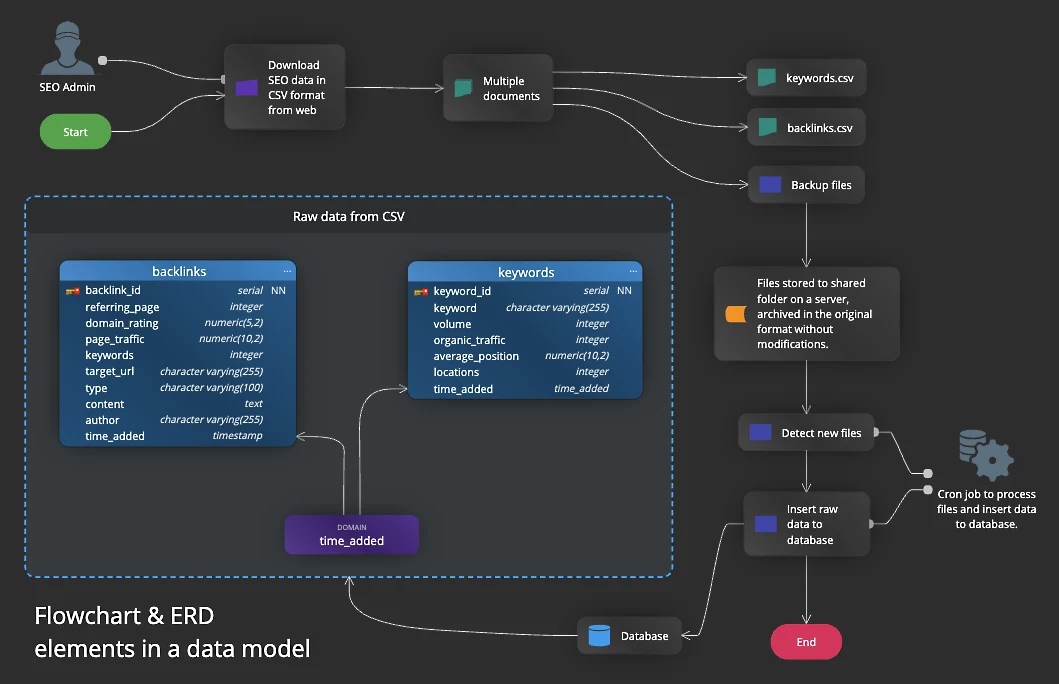
A normal data model shows tables, columns and the links between them. That answers "how is the data stored?". It does not answer "how does the data get here, and what happens to it next?".
So teams end up with two separate pictures. One ER diagram lives in a modeling tool. A flowchart or a data flow diagram lives in another drawing app. The two never sit together, and the reader has to hold both in their head at once.
The pain point: two diagrams that drift apart
Keeping two pictures in step is hard work. You rename a table in the model, but the flowchart still shows the old name. A new step appears in the process, yet the data model never hears about it. After a while, neither picture is fully right.
Then a new person reads the docs and gets confused, because the structure diagram and the process diagram tell slightly different stories. So the documentation loses the trust it needs to be useful.
How Luna Modeler solves it
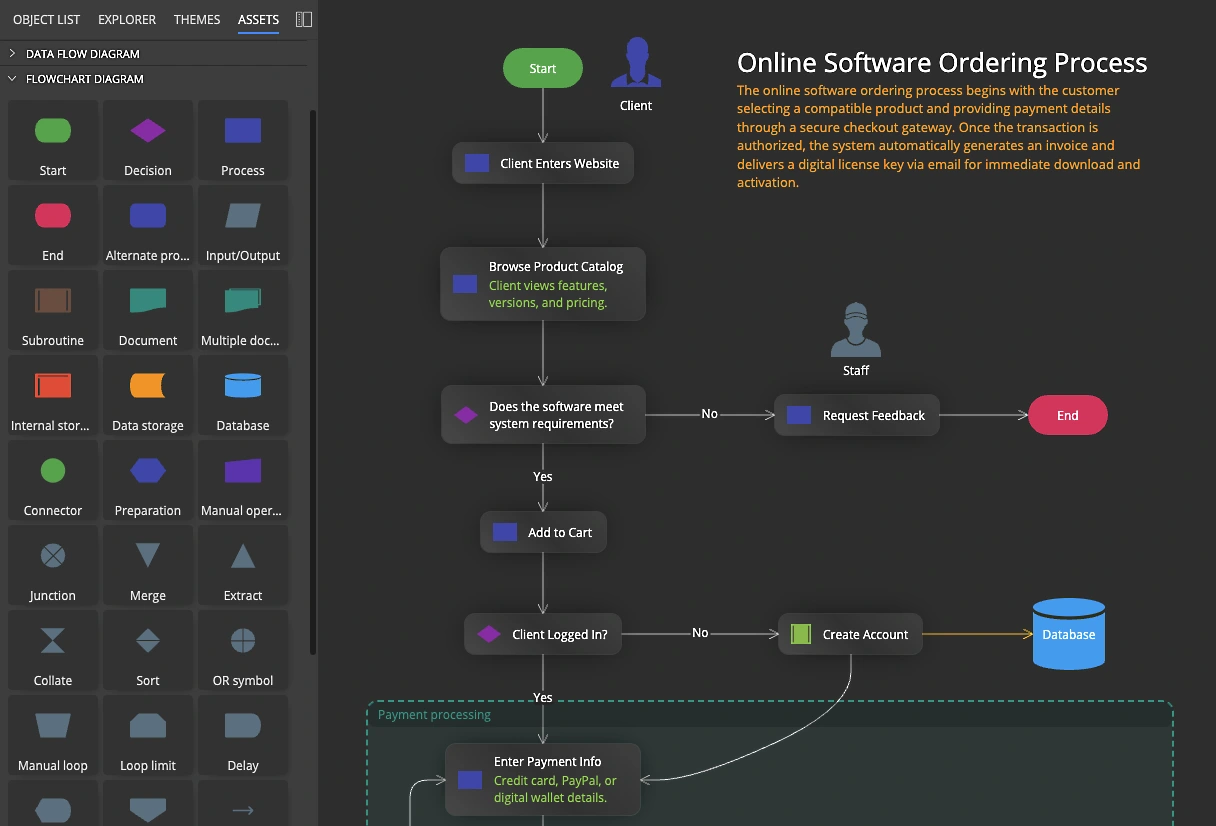
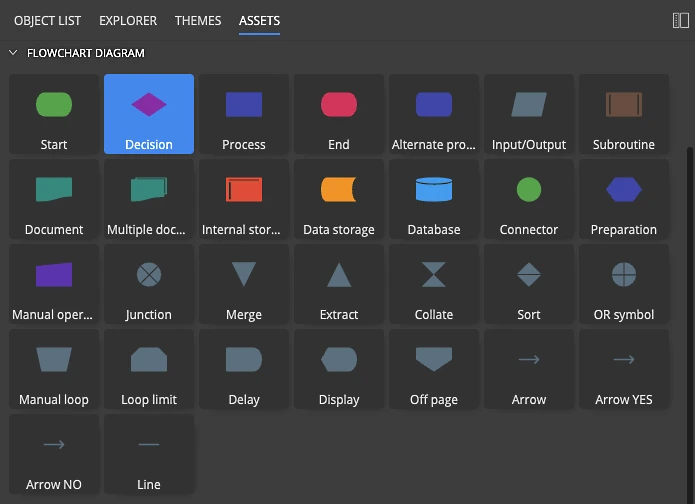
Luna Modeler lets you add flowchart and data flow diagram elements directly to the database model. Open the Assets pane and you find a Flowchart Diagram section with shapes such as Start, Decision, Process, Document and Database, plus a Data Flow Diagram section with Terminator, Process, Data store and Data flow.
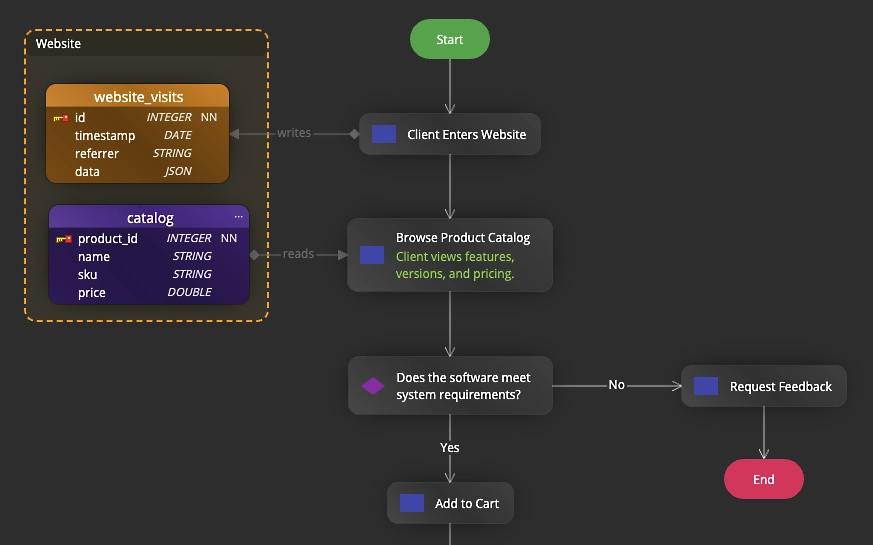
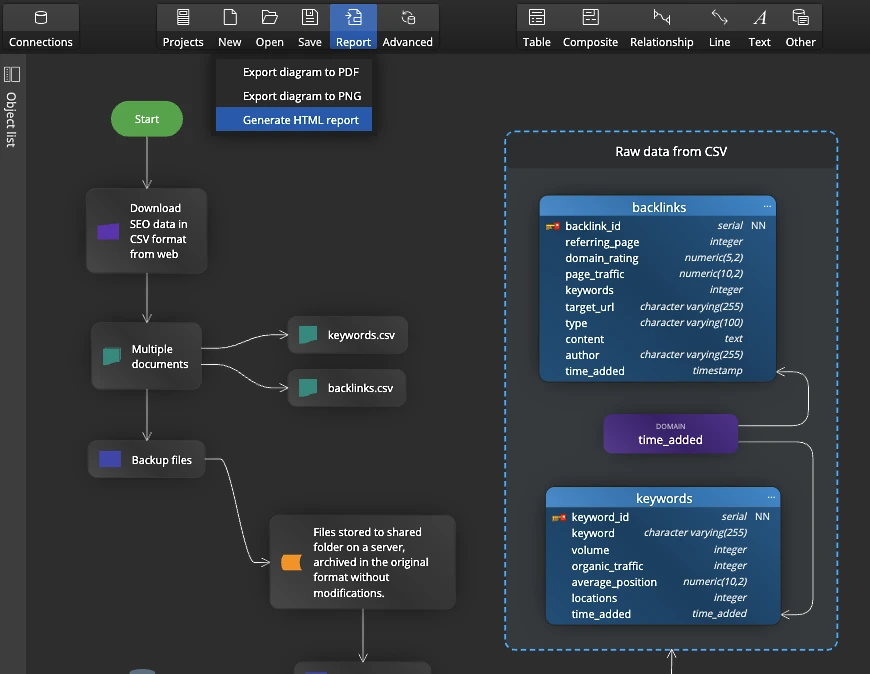
You add the elements you need onto the same canvas as your tables, then connect them with lines and arrows. So the structure and the process finally live in one place. That makes the model more informative, clearer to read, and far more useful to the team.
Show each element the way that reads best
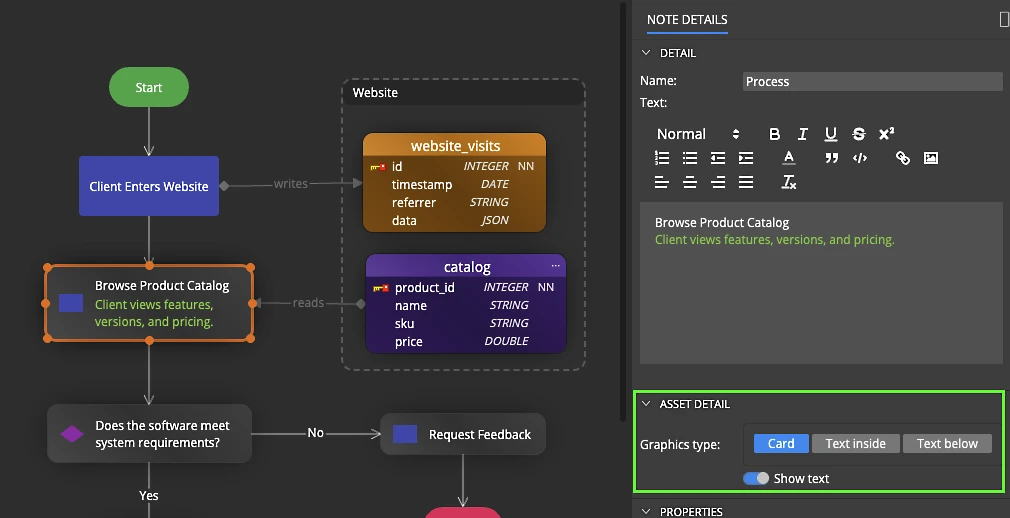
The elements are flexible. A flowchart shape can appear as a classic object with the text inside it, as a shape with the label below, or as a card. So you pick the look that fits the diagram and keeps it tidy.
And these elements are not limited to flowcharts and data flow. Luna Modeler also offers Use Case shapes, conditions, text and notes, plus other graphics, so you describe the system from several angles in the same model.
The workflow, step by step
Adding process elements to a model takes a few clear steps:
- Open or reverse engineer the data model so your tables are on the canvas.
- Open the Assets pane and pick the Flowchart Diagram or Data Flow Diagram section.
- Add the elements you need, such as Process, Decision, Data store or Terminator.
- Connect them with lines and arrows to show the order and the flow.
- Choose a display style for each element: card, classic with text inside or below.
- Add text and notes to explain any step that needs more detail.
After this, one diagram tells the whole story: where the data lives and how it moves.
What you get at the end
The result is a single, richer model. It shows the database structure and, right beside it, the flowchart or data flow that explains how the data is created, changed and used. So a reader understands the system from one picture instead of two.
You can export the diagram to an image, a PDF or an HTML report and share it in a wiki or a review. As a result, the documentation stays informative, clear and useful for everyone who opens it.
The same canvas carries more than process. Use it to map data lineage between sources and tables, and to record data governance notes such as owners and sensitive fields, so structure, flow and rules sit together in one model.
- Free 14 days trial
- No credit card required
Yes. Luna Modeler keeps flowchart shapes in the Assets pane, so you drag Start, Decision, Process, Document and other elements straight onto the same canvas as your tables.
A data flow diagram, or DFD, is a simple picture that shows how data moves through a system. It uses a process that changes data, a data store that holds it, an outside terminator, and arrows for the flow.
Keeping the structure and the process in one diagram means the reader sees both at once. There is no second picture to keep in sync, so the documentation stays clear and trustworthy.
A flowchart shape can appear as a classic object with the text inside, as a shape with the label below, or as a card. You choose the style that keeps the diagram tidy.
Besides flowchart and data flow elements, Luna Modeler includes Use Case shapes, conditions, text and notes, plus other graphics, so you can describe the system from several angles in one model.