Luna ModelerCustom Fields & Templates
- Your own fields Add text, numbers, dates, ranges and links to any object
- Show them anywhere Display fields on the diagram and inside HTML reports
- Generate code Turn fields into SQL, HTML, CSV or source code with templates
- Pay once, use forever A desktop tool with an excellent ROI
Add the fields you need, then turn your model into the output you want.
The problem: a fixed tool cannot hold your project knowledge
A data model carries tables, columns and relationships. Your project carries more than that. You also track who owns a table, how sensitive a column is, what sprint a change belongs to, and which screen a field shows up on. None of that fits in a standard column property, so it ends up in a separate spreadsheet, a wiki page, or someone's memory.
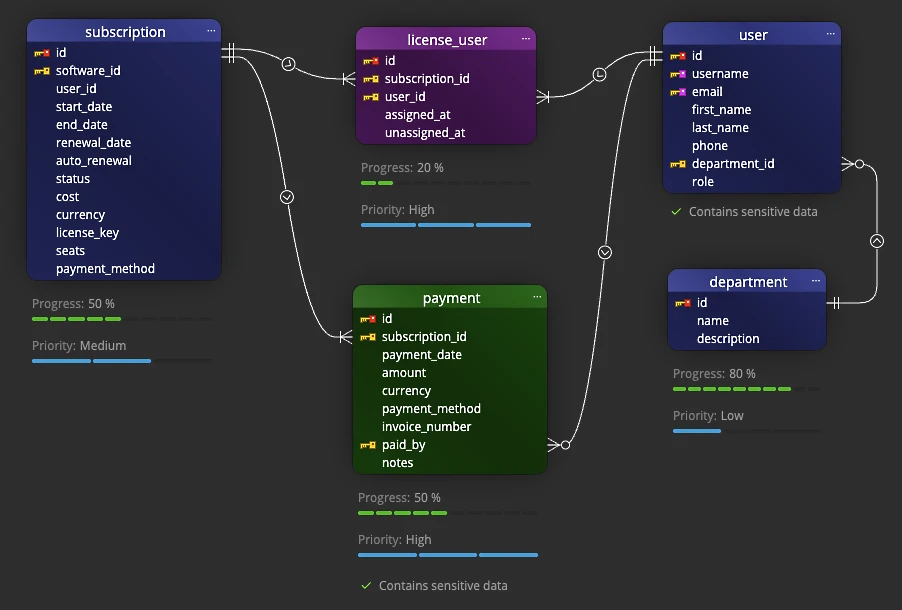
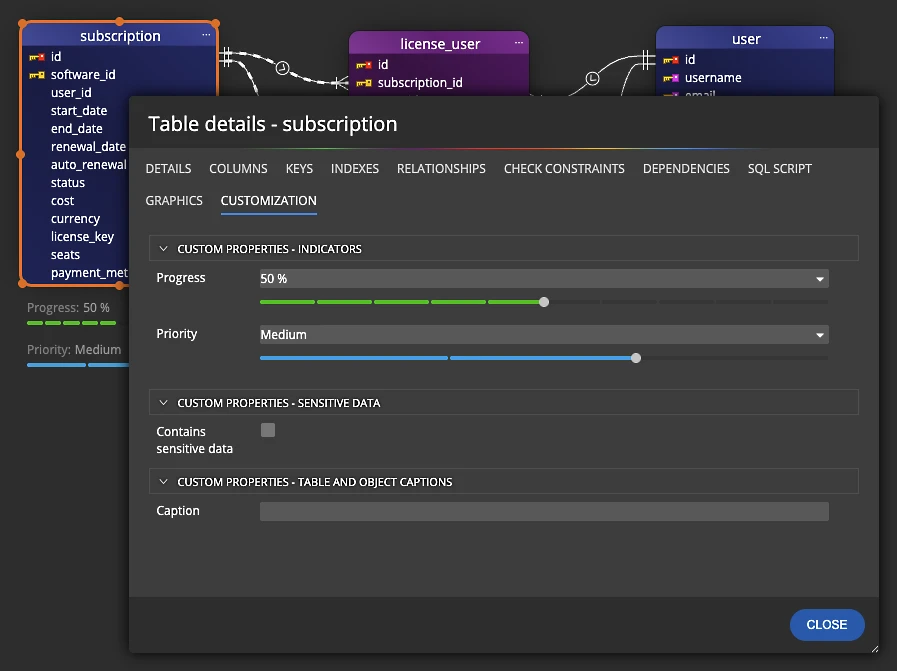
A custom field is simply an extra property you define yourself and attach to objects in the model (see Priority, Progress, Sensitive data on the screenshot).
A custom template is a small recipe that reads your model and writes an output file. Together they let the tool hold the exact information your team works with, instead of a fixed set the tool author guessed at.
The pain point: knowledge drifts away from the model
When extra details live outside the diagram, they go stale fast. A column is renamed, but the spreadsheet that lists its owner is not. A new developer reads the model, misses the side notes, and writes code against the wrong assumption. So the diagram says one thing while the real rules live somewhere nobody can find.
On top of that, the same facts get typed again and again. Someone copies field names into a form, then into validation code, then into a report. Because each copy is manual, each copy can be wrong. The real cost is not the typing. It is the slow loss of trust in the model.
How Luna Modeler solves it
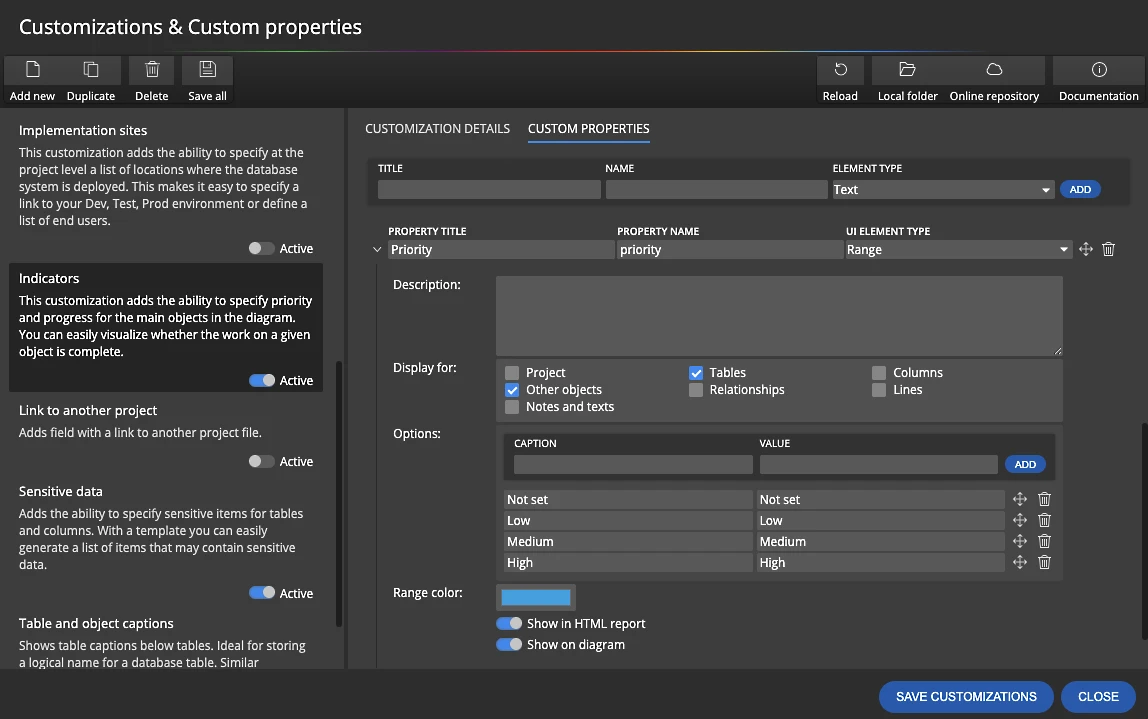
Luna Modeler lets you add your own custom properties through a visual editor. First you open Manage customizations and custom properties from the Settings page. Then you define a property, pick the object types it applies to, and choose the UI element that fits, such as a text field, a select list, a range slider, or a date picker.
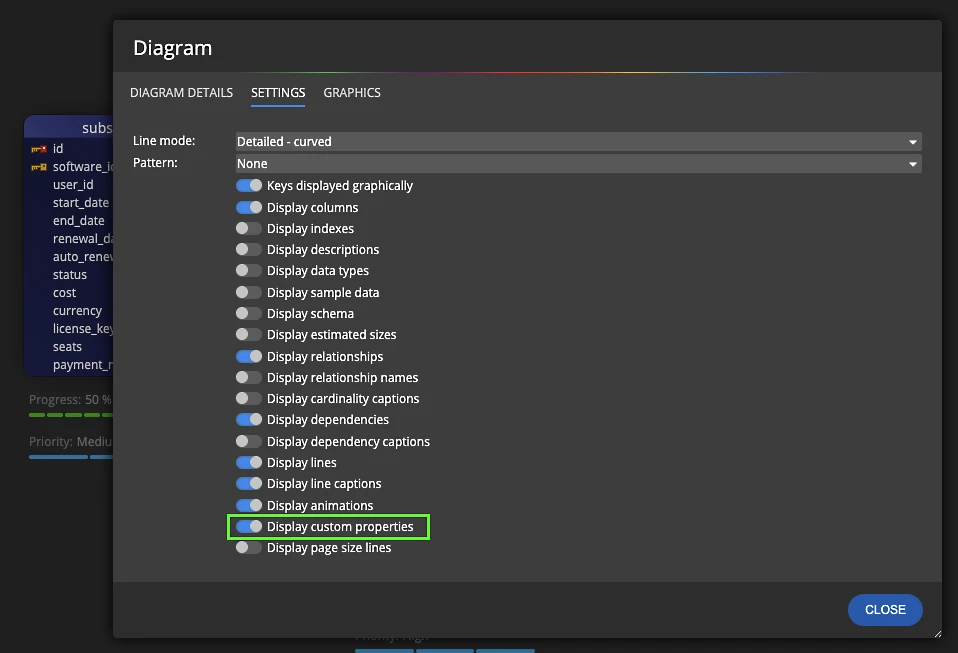
After that, each property has two handy switches. Show on diagram puts the value right on the object, so the whole team reads it at a glance. Show in HTML report includes it in exported documentation. As a result, the knowledge that used to sit in a spreadsheet now travels with the model itself.
From fields to real output with templates
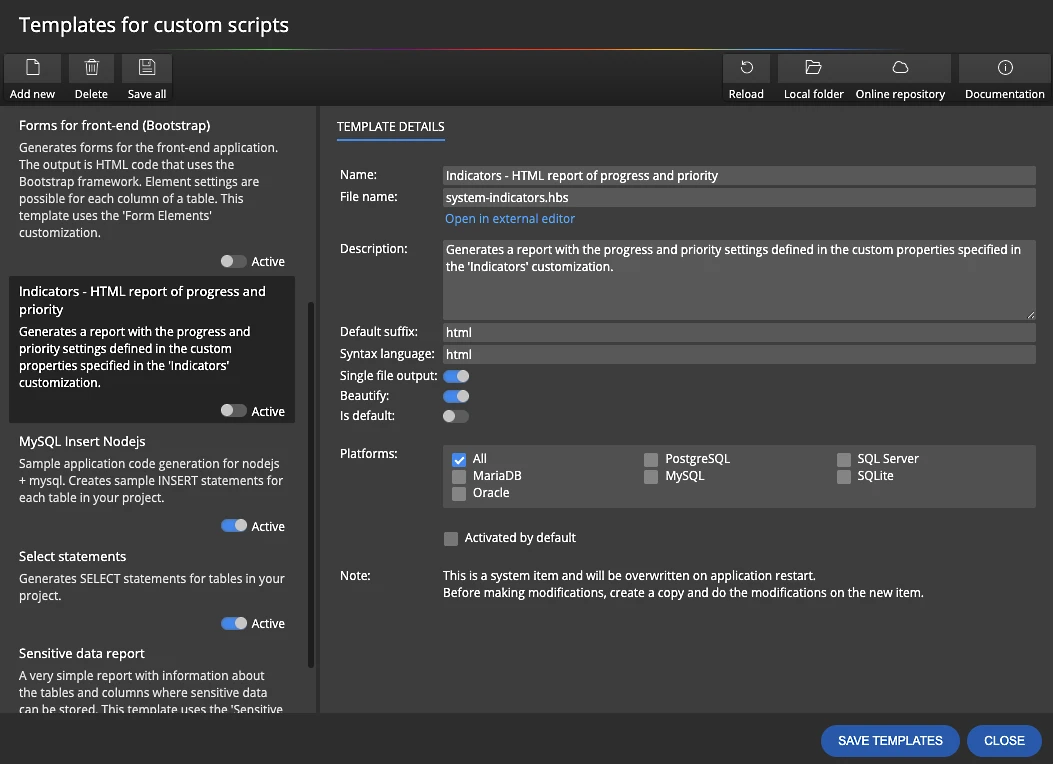
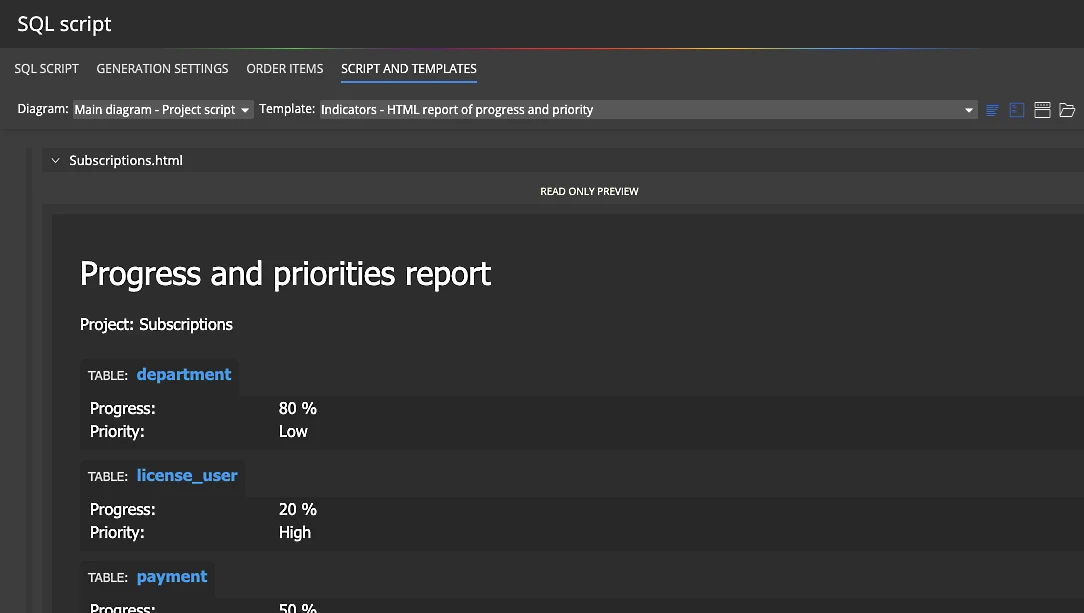
Custom fields get even more useful once you feed them into a template. A template is written in Handlebars, a simple system that reads your model and produces text. So you can generate SQL scripts, HTML pages, CSV files, or snippets of application code straight from the diagram.
Each template is two files: a *.json file that holds the settings, and a *.hbs file that holds the code. You edit the settings visually, then write the body in an editor like VS Code. Because templates read your custom fields, a single property such as "form element type" can drive the exact form the template builds.
The workflow, step by step
Setting up custom fields and templates follows a short, repeatable path:
- Open the Settings page and click Manage customizations and custom properties.
- Define a custom property: name it, pick its object types, and choose a UI element.
- Enter values for your objects in the side panel or modal form as you build the model. (see screenshot)
- Show the values where they help, on the diagram and in the HTML report.
- Copy a predefined template, then edit the *.hbs file so it reads your custom fields.
- Generate the output and review the result in the Script form.
Once this is in place, every new object you draw can carry the same fields and feed the same template. So the model and its output stay in step without extra typing.
Tip: system customizations and templates contain "system" in the name and get overwritten on startup. So click Duplicate first and edit the copy. That way your changes survive every update.
What you get at the end
When the setup is done, you hold a model that fits your project, not a generic shape. Custom fields sit on the objects they describe, so the diagram tells the full story. Reports carry the same fields, so the people who never open the tool still see them.
You also hold a generator. Point a template at the model and it writes SQL, HTML, CSV, or application code, complete with the values from your custom fields. As a result, the model turns into a small rapid application development engine that you control.
This pairs well with living database documentation and with keeping the model honest through regular schema drift checks.
Download the free trial, add your first custom field, and generate output from your own template in minutes.
- Free 14 days trial
- No credit card required
A custom field, also called a custom property, is an extra property you define yourself and attach to objects in the model. You can store text, numbers, dates, ranges or links, and choose the UI element used to edit each one.
Yes. Each custom property has a Show on diagram switch and a Show in HTML report switch, so you decide which values appear on the canvas and which ones are included in exported documentation.
Custom templates read your model and write output files such as SQL scripts, HTML pages, CSV files or application code. They can also read your custom fields, so one property can drive what the generated output looks like.
Templates use Handlebars. Each template is made of a JSON settings file you edit visually and an HBS file that holds the code. The tool also adds helpers for filtering, sorting, quoting and creating new files.
System customizations and templates contain the word "system" in the name and are overwritten on startup. Duplicate one first and edit the copy, or create a brand new one, and your work is kept across updates.