What's new in
Luna Modeler version 14.5
This page was updated on September 14th
New Database Platforms Supported and More Detail on Your Diagrams
- Supabase and Neon, built in.
Pick Supabase or Neon as the connection type, copy the connection details from your project dashboard and turn the database into a data model with an ER diagram in a few clicks. - Diagrams that show more.
Columns in views, parameters of functions and procedures, PostgreSQL enum values and table triggers can now be displayed right on the diagram. - Faster restructuring.
Drag a column from one table and drop it onto another to move it. Press CTRL to copy the column or just rearrange the selected column in the active table. - Cleaner comparisons.
Ignore whitespaces when you generate synchronization SQL scripts or update a project, so line endings and empty lines no longer show up as differences.
Supabase Support
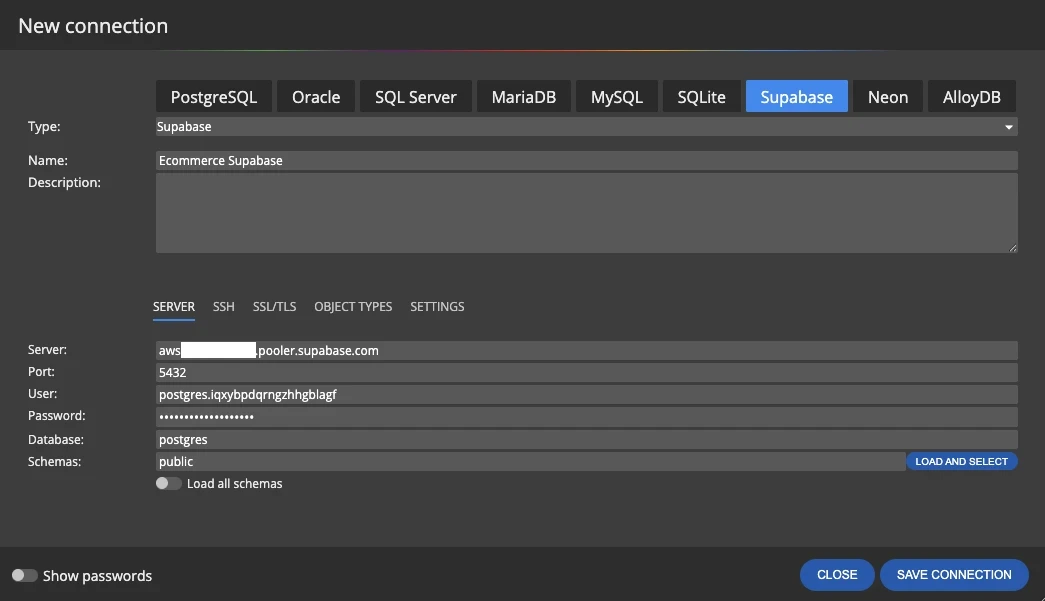
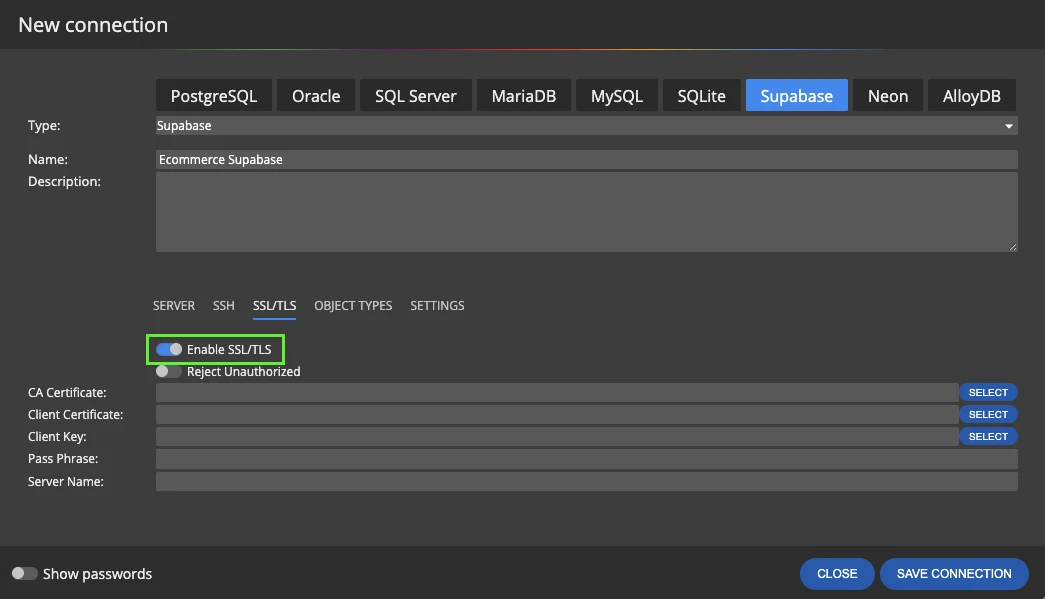
Supabase now has its own connection type in Luna Modeler. Open the Connect dialog of your Supabase project, copy the session pooler host, port, database and user, enable SSL/TLS and click Connect and load existing database structure. Luna Modeler reads the tables, views, enums, functions and other objects from the schemas you selected and builds a project with an ER diagram.
Running the Supabase Postgres image locally in Docker? Connect to it the same way — just point the connection to localhost and the port you mapped.
Neon Support
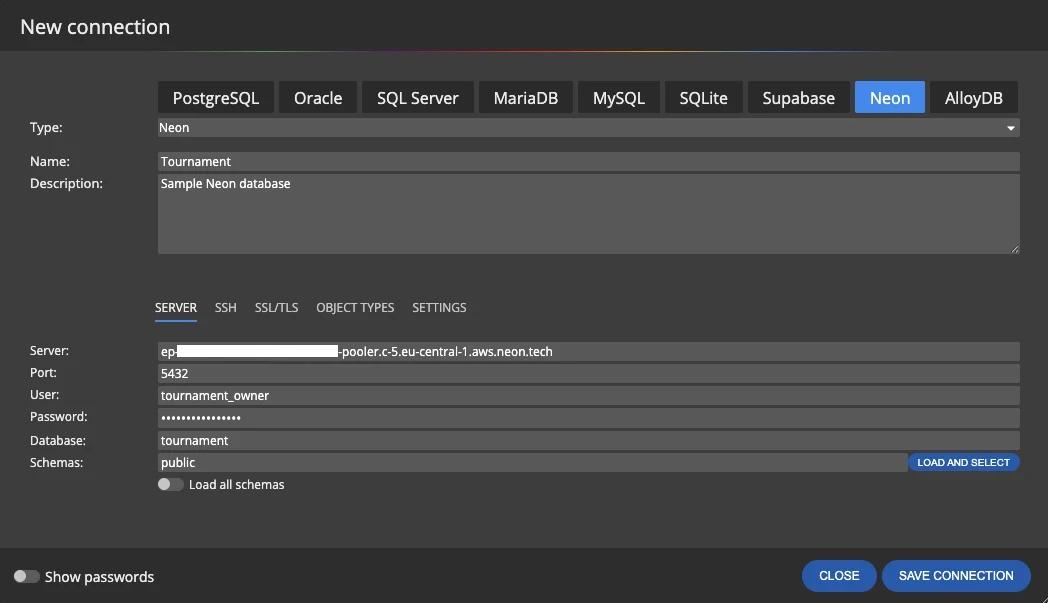
Neon serverless Postgres is supported as well. Select Neon as the connection type, fill in the host, role and database from the connection string shown in your Neon project, keep SSL/TLS enabled and load the structure.
Reverse engineer and compare any of your Neon branch with your data model.
New Projects and Model Conversion for Supabase and Neon
Supabase and Neon are available in the New project dialog too, so you can design a database from scratch before it exists and generate the SQL script to build it.
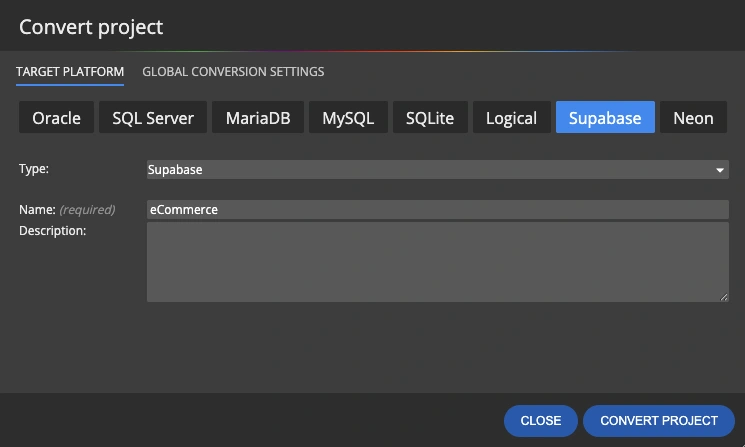
Already have a model for PostgreSQL or another platform? Use Convert project and pick Supabase or Neon as the target platform — the converted project keeps your tables, relationships and diagrams.
Columns in Views on Diagrams
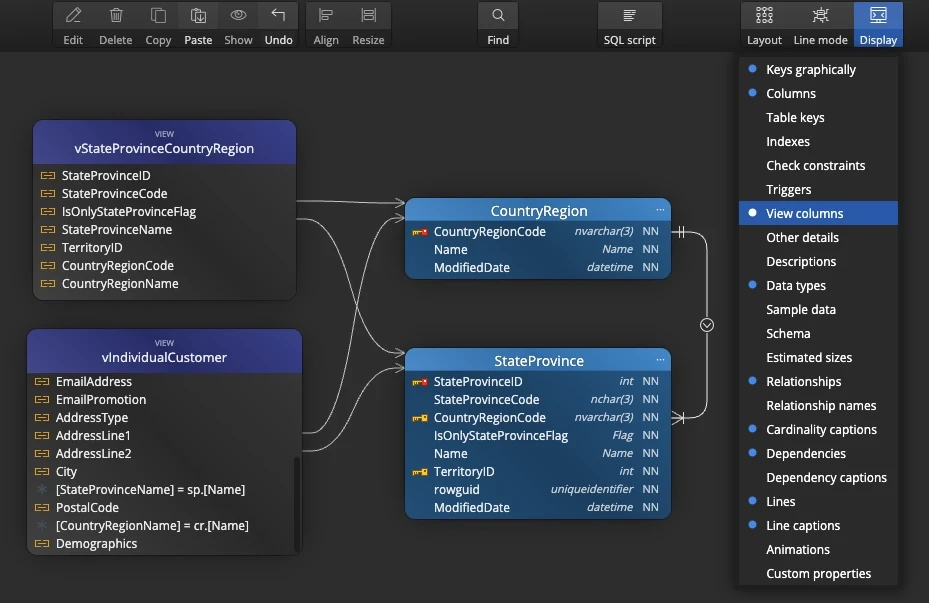
Views on diagrams can now list their columns, just like tables. See what a view returns without reading its SQL, and follow the lines to the tables it reads from.
Turn the option on in the Display menu on the main toolbar with View columns.
In, Out and InOut Parameters of Other Objects
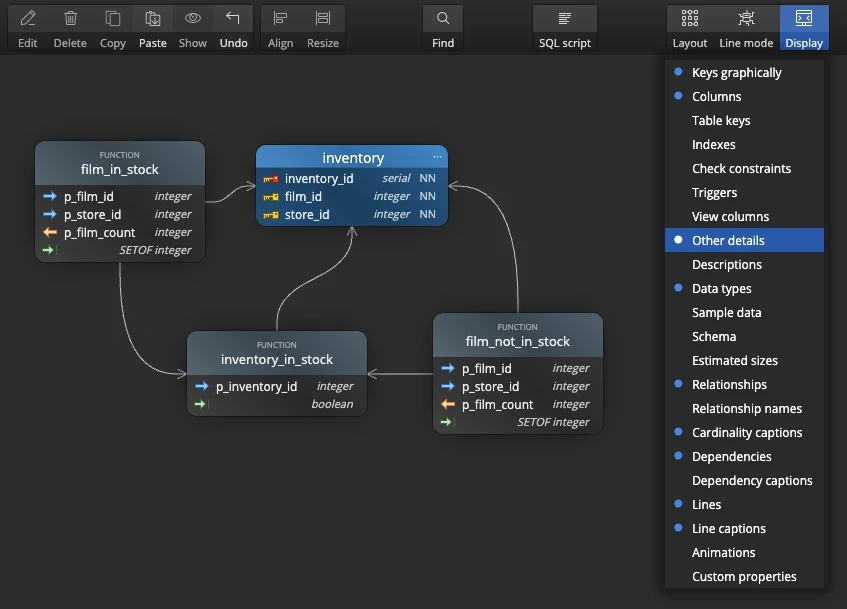
Functions, procedures and other objects can now display their parameters on the diagram. Arrows show the direction of each parameter — In, Out or InOut — next to its name and data type, and the return type is listed at the bottom.
You see the signature of a routine at a glance, together with the tables it depends on. Turn it on with Other details in the Display menu.
PostgreSQL Enum Values on Diagrams
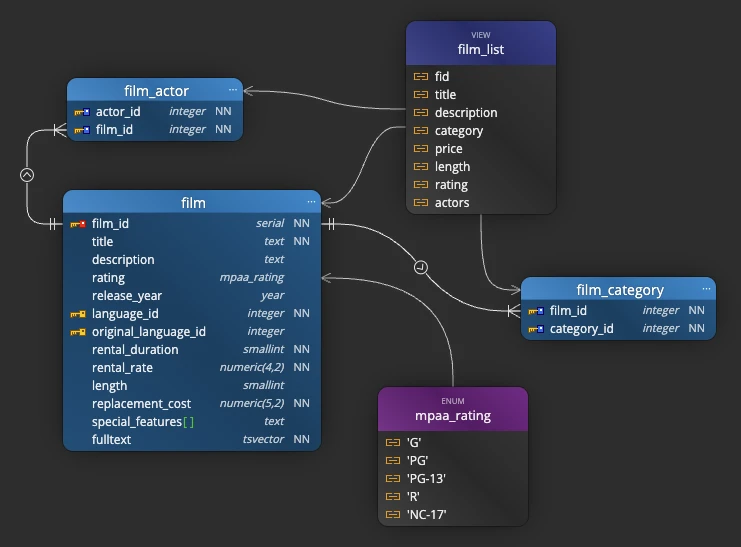
Other objects of the Enum type in PostgreSQL can show their values right on the diagram. The allowed values sit next to the tables that use the enum, so nobody has to open the object to find out what a column accepts.
Enum values are displayed with the same Other details option.
Triggers in Table Graphics
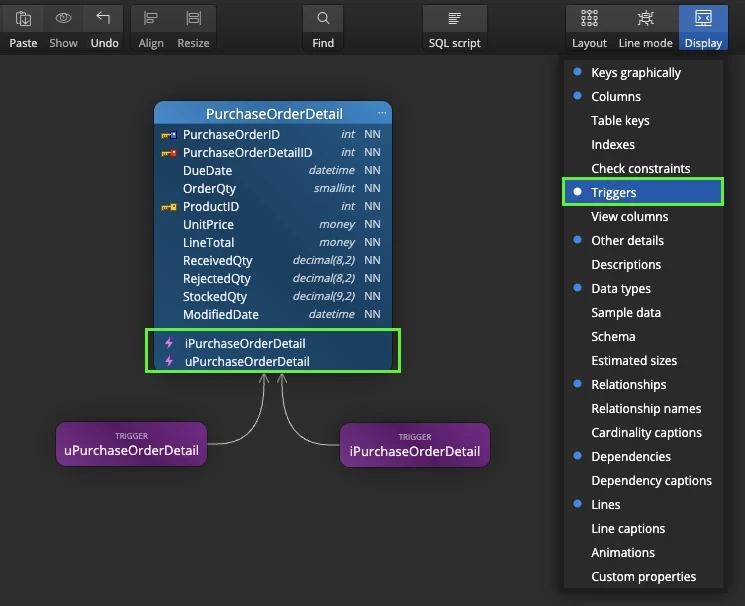
Tables can now list the triggers defined on them, in a separate section below the columns. Logic that runs on insert, update or delete is no longer hidden in the object list — you see it where the data lives.
Select Triggers in the Display menu, or turn on Display triggers in the diagram settings to set it per diagram.
Drag and Move Columns Between Tables
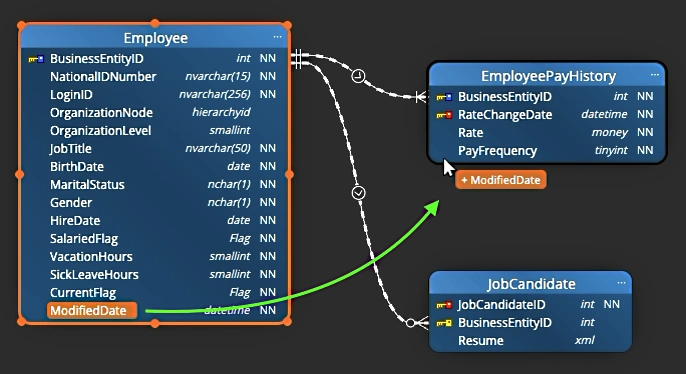
Models change as you learn more about the data. A column that started in one table often belongs somewhere else. Now you can drag it from one table and drop it onto another — no need to delete it and define it again.
- Move a column to its owner.
Put a column into the table where it belongs. - Improve normalization.
Move particular columns into a new table easily. - Tidy up after reverse engineering.
Reorganize a loaded structure into the target design directly on the diagram.
Ignore Whitespaces in Synchronization SQL Scripts
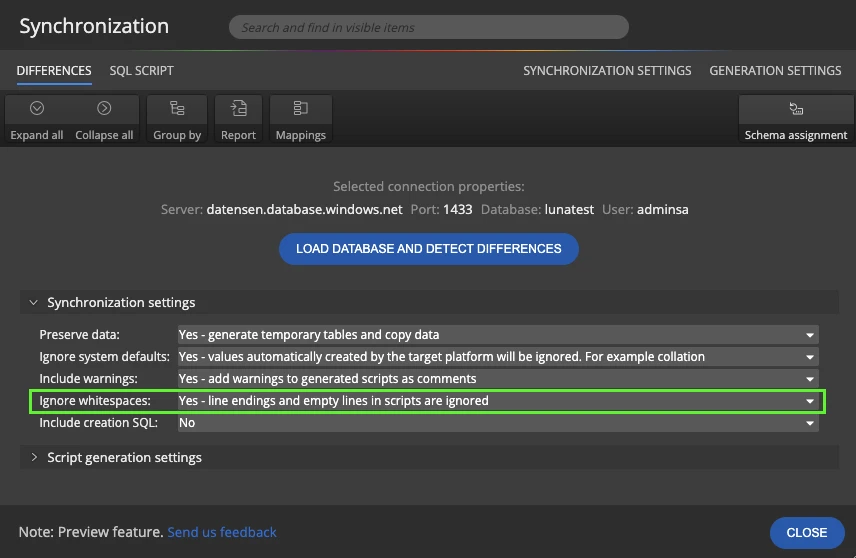
The code of views, functions, procedures and triggers stored in a database often differs from your model only in line endings or empty lines. Until now, such objects showed up as changed and ended up in the synchronization script.
Set Ignore whitespaces to Yes in the synchronization settings and line endings and empty lines in scripts are ignored. The list of differences shows only real changes, and the generated SQL script contains only what actually needs to run.
Ignore Whitespaces in Project Update
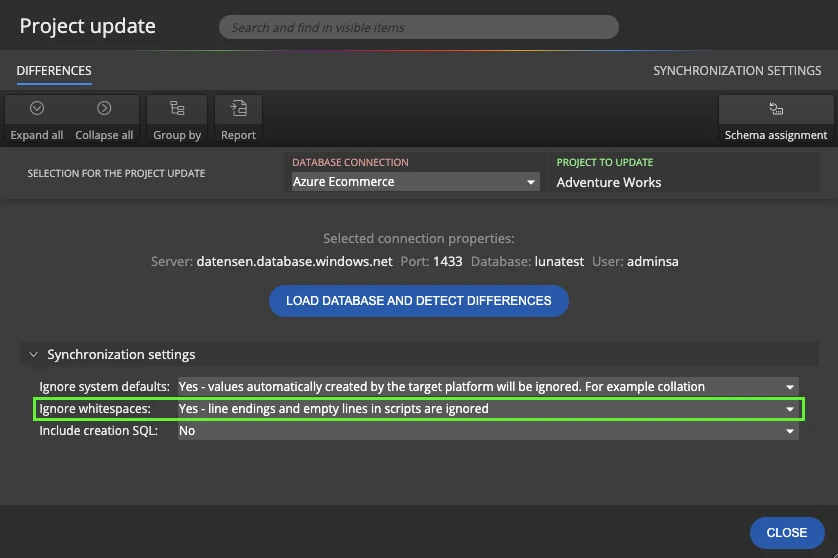
The same option is available when you update a project from the database. With Ignore whitespaces turned on, objects that differ only in line endings or empty lines are not reported as changed, so the update brings in only real changes and your model keeps its formatting.

- Free 14 days trial
- No credit card required
Other improvements
Version 14.5
- Supabase: new connection type for cloud and local Supabase databases
- Neon: new connection type for Neon serverless Postgres
- Views: columns can be displayed on diagrams
- Other objects: In, Out and InOut parameters can be displayed on diagrams
- PostgreSQL: values of Other objects of the Enum type can be displayed on diagrams
- Tables: triggers can be displayed in table graphics
- Columns can be moved from one table to another using drag and drop
- Synchronization: new option Ignore whitespaces for generation of synchronization SQL scripts
- Project update: new option Ignore whitespaces
- New project and Convert project: Supabase and Neon added as target platforms
Version 14.0.1
- PostgreSQL: Improved loading of indexes
- Fixed issue with diagram items position defined after reverse engineering
- Line point restricted area adjusted
- Fixed issue related to app performance
Version 14
- Read What's new in Luna Modeler version 14 (with screenshots)
- New assets are available for drawing items on your diagram
- Lines are now better rendered between objects, especially in the curved mode
- Other minor improvements