A use case diagram is one of the most accessible ways to capture system behavior from the user’s perspective. Instead of diving into technical details, it highlights how different actors interact with a system and what goals they want to achieve. This makes use case diagrams a favorite tool among analysts, designers, and teams working on early‑stage system planning.
What Is a Use Case Diagram?
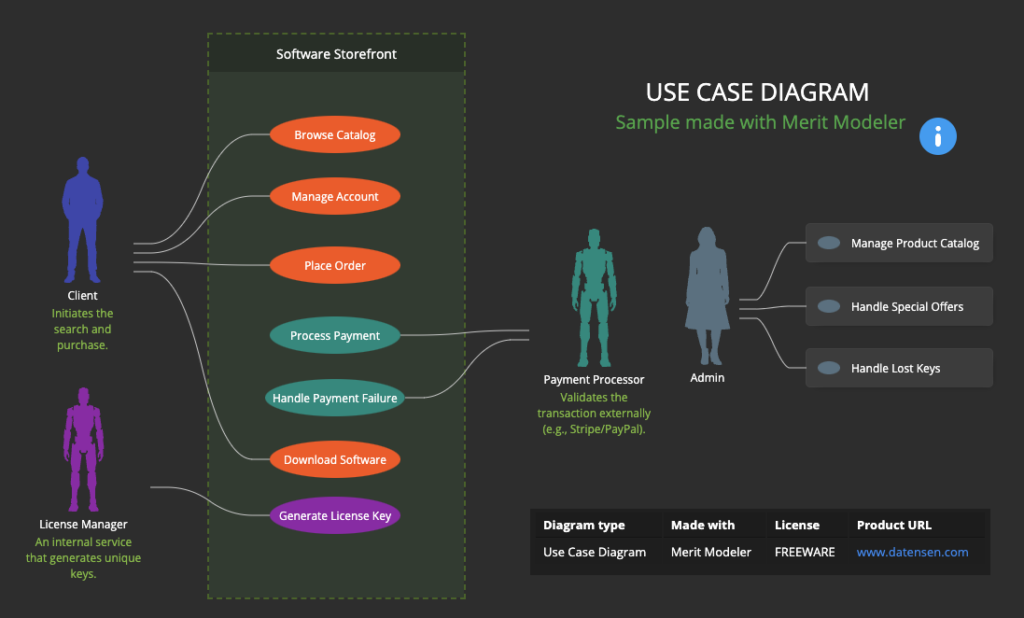
A use case diagram is a visual model that illustrates the relationships between users (called actors) and the functions they need from a system (called use cases). Instead of focusing on internal logic, it captures goals, interactions, and boundaries.
Use case diagrams are commonly used for:
- Requirements gathering
- Early system design
- Communication between stakeholders
- High‑level project scoping
- UX and feature planning
They offer a clear overview of what the system should deliver from the user’s point of view.
Merit Modeler: A Freeware Tool for Use Case Data Modeling
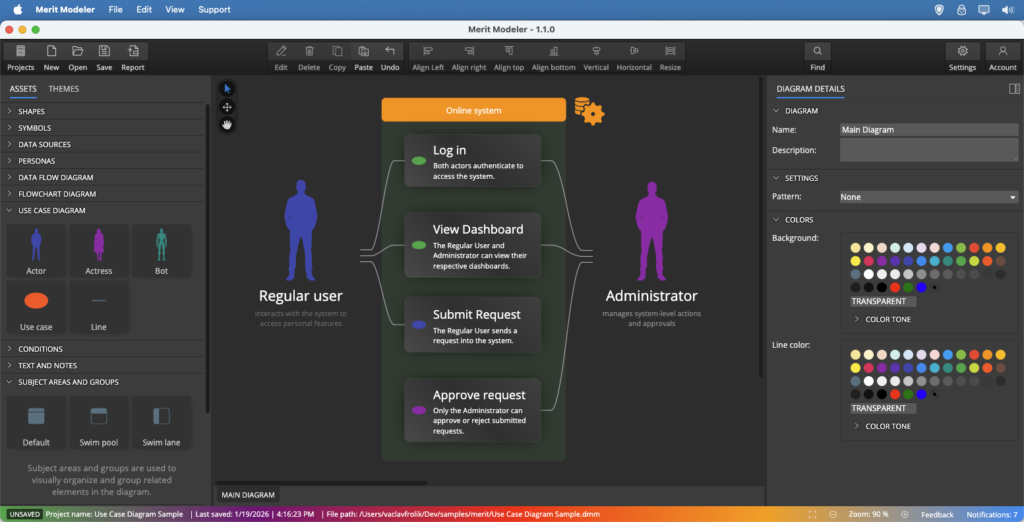
If you need a free tool for creating use case diagrams, Merit Modeler is an excellent choice.
Why It Works Well for Use Case Diagrams
- Completely free to use
- Lightweight and fast
- Clean interface ideal for modeling
- Supports actors, use cases, and system boundaries
- Easy exporting for documentation and presentations
Merit Modeler is a freeware desktop application designed for structured modeling. It supports:
- Windows
- Linux
- macOS
Download the Merit Modeler freeware from the Download section at datensen.com
How to Create a Use Case Diagram in Merit Modeler
Here’s a straightforward workflow to help you build your first use case diagram.
1. Launch Merit Modeler
Download and install Merit Modeler. Start the application and create a new project of type Diagram.
2. Add Actors
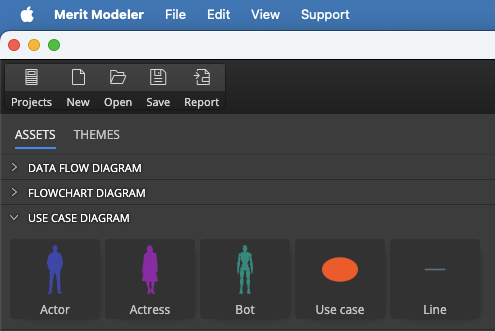
Use the Assets panel to insert actor (or actress or bot) symbols to your diagram. These represent users or external systems that interact with your application.
3. Insert Use Cases
Add ovals to represent the actions (use cases) or goals the actors want to accomplish.
4. Draw Associations
Connect actors to use cases with simple lines to show interactions. To connect two objects, click the Line button in the Assets panel, then click the source object and finally click the target object on your diagram.
5. Define System Boundaries
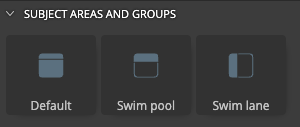
Use a subject area (default), swim pool or swim lane objects (rectangular frame) to outline the scope of the system being modeled.
6. Label Everything Clearly
Give each actor and use case a meaningful name to keep the diagram readable.
7. Save or Export Your Diagram
Export your use case diagram for documentation, presentations, or team discussions.
Simple Use Case Diagram Example
Below is a basic structure you can recreate in Merit Modeler.
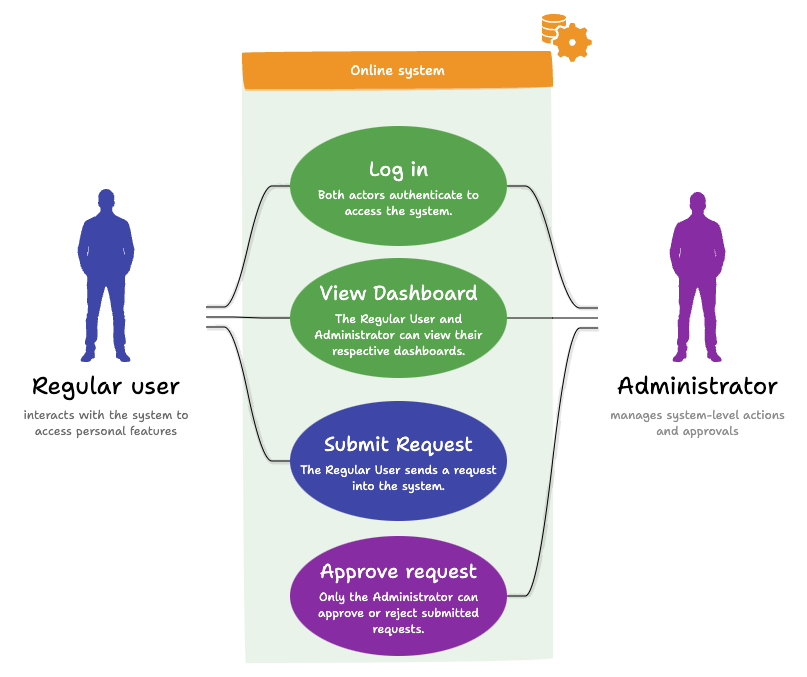
Sample Structure
Actors
- Regular User – interacts with the system to access personal features
- Administrator – manages system‑level actions and approvals
Use Cases
- Log In – Both actors authenticate to access the system.
- View Dashboard – The Regular User and Administrator can view their respective dashboards.
- Submit Request – The Regular User sends a request into the system.
- Approve Request – Only the Administrator can approve or reject submitted requests.
Why Use Case Diagrams Are Useful
Use case diagrams help teams:
- Identify system functionality without technical jargon
- Align business and development expectations
- Spot missing or redundant features
- Clarify who interacts with the system and how
- Provide a foundation for detailed use case descriptions
They serve as a bridge between business goals and technical implementation.
Tips for Clear and Effective Use Case Diagrams
To keep your diagram clean and easy to understand:
- Use consistent spacing between elements
- Group related use cases together
- Avoid unnecessary lines or overlaps
- Keep actor names short and descriptive
- Use system boundaries to clarify scope
Final Thoughts
A use case diagram is a powerful tool for capturing system behavior from the user’s perspective. With Merit Modeler, you can create polished diagrams without paying for expensive modeling software. The application is free, fast, and available across all major operating systems.
Download Merit Modeler and start shaping your system requirements visually.
FAQ
A use case diagram is a visual model that shows how users (actors) interact with a system through specific goals called use cases. It highlights system boundaries, user roles, and the functions the system must support.
A use case diagram includes actors, use cases, associations, and a system boundary. Actors represent users or external systems, while use cases describe the actions they want to perform.
Open a new model, add actors, insert use case symbols, connect them with associations, and place a system boundary (subject area) around the use cases. Merit Modeler provides all required elements in its Assets panel.
Yes. Merit Modeler is completely freeware and available for Windows, Linux, and macOS. You can download it from datensen.com
Yes. Merit Modeler allows exporting diagrams for documentation, presentations, and team collaboration.
Everything you create stays with you. Your data is yours and everything is completely under your control.
Use case diagrams are ideal for analysts, developers, UX designers, and stakeholders who need a clear overview of system functionality from the user’s perspective.
 Luna Modeler
 Moon Modeler
 Galaxy Modeler
 Merit Modeler
 Meteor Modeler